My audience
Adding individual contacts
Building your audience is one of the first things you'll do on Trackdrop.
Trackdrop makes it easy to add new contacts, review their status and activity, and manage your email list, so you can make sure your promos are being sent to the right people.
Read on to learn how to add contacts individually or click here [Link to 'Adding contacts in bulk'] to find out how to import a whole list of contacts at once.
Adding your first contact
All of your contacts live in the Audience section. To find it and get started with adding your first contact:
Sign in to your Trackdrop account.
Click Audience in the left-hand sidebar
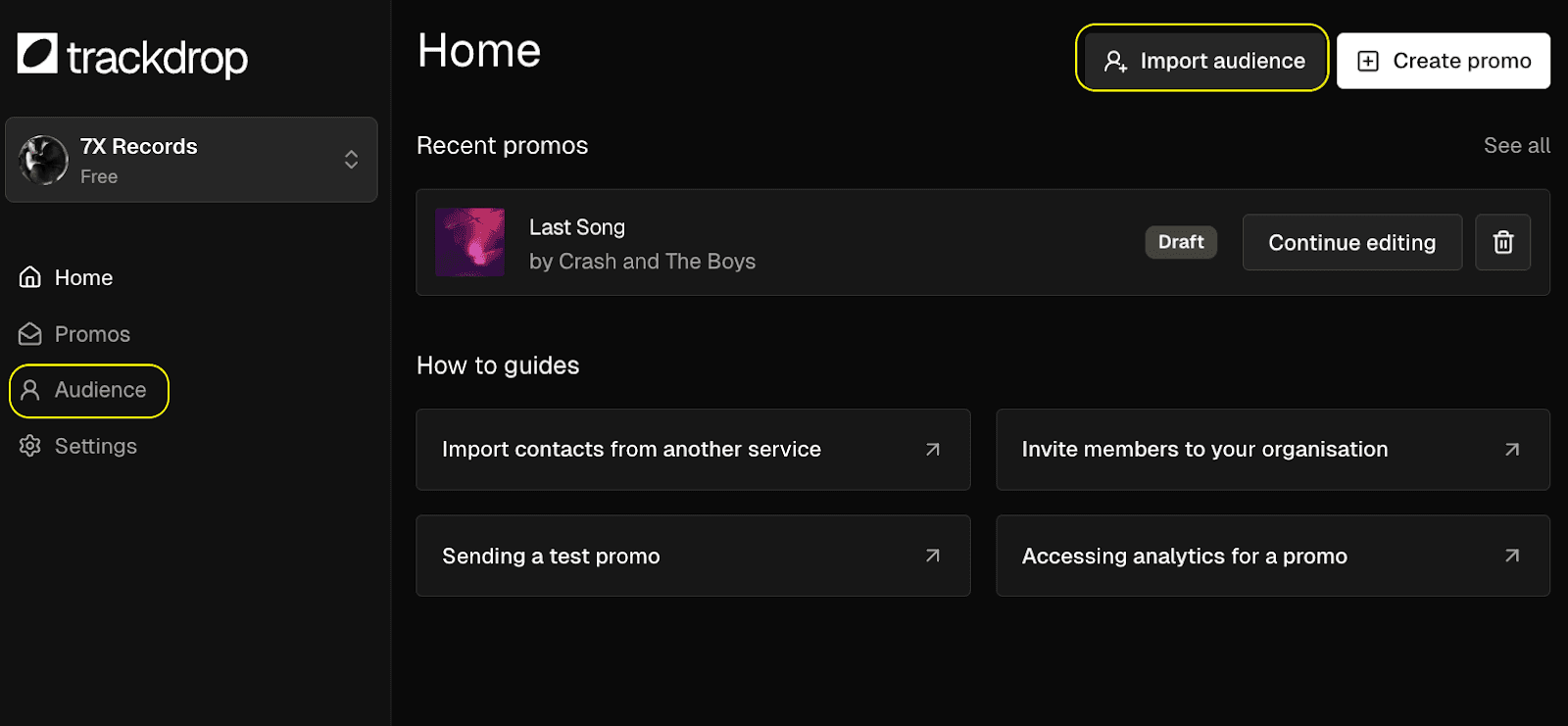
You'll land on the Audience page, which shows a table of all your contacts. If you haven't added anyone yet, you'll see a prompt inviting you to build your audience.Click Add contacts, then select Add single contract from the dropdown list.
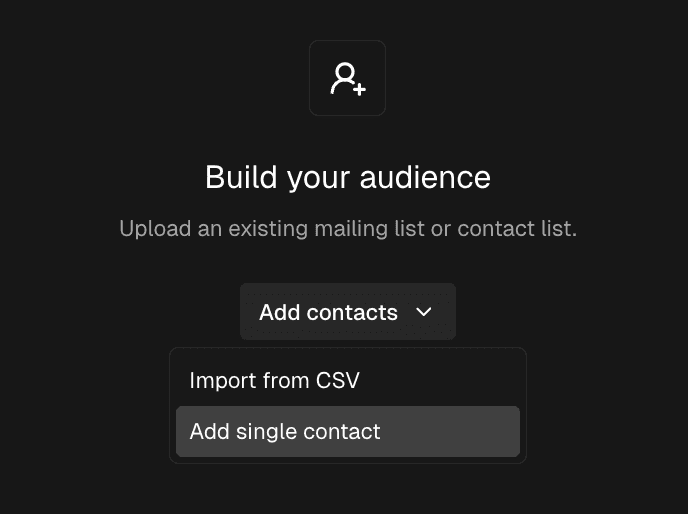
A dialog box titled Add contact will open. Fill in:
Name - the contact's full name (required)
Email address the contact's email address (required)
Tags - any tags you’d like to assign to the contact (optional)
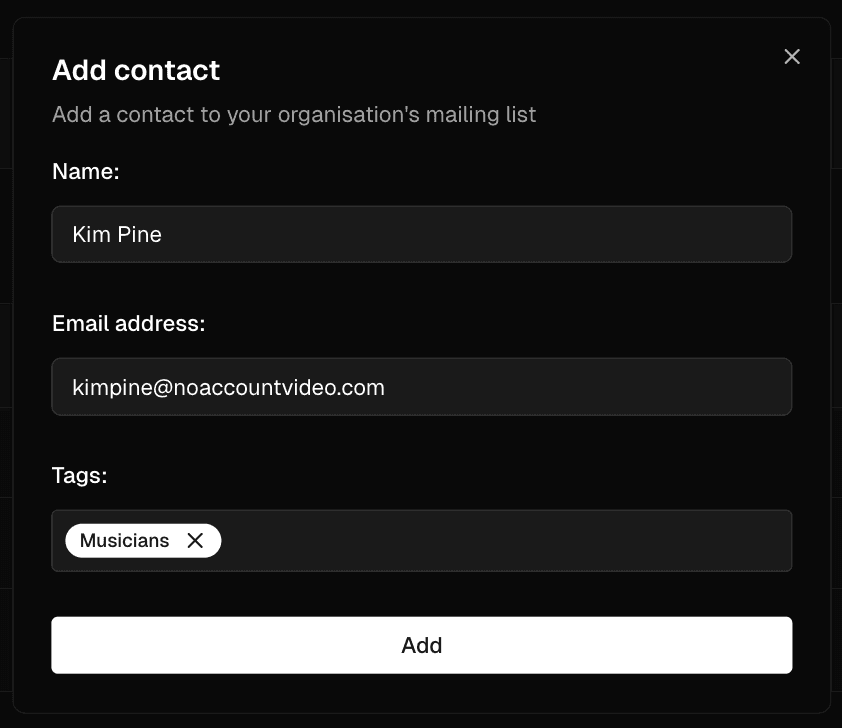
Click Add.
You’ve added your first contact! They’ll now appear in your Audience table. You can see a snapshot of their status and activity here, and you can copy their address, update their tags, or remove them.

Adding more contacts
To continue adding contacts individually, click the Add contacts button at the top-right of your audience list, or click Import audience on your dashboard, and repeat the process above.
Need to add a large number of contacts? We recommend uploading a CSV file instead of individual contacts, so you can expand your audience in bulk. Read more here.